Keys Maintenance


Keys Maintenance allows you to insert, duplicate, modify and delete your point of sale keyboard keys.


Data Entry

The data entry area dynamically displays the currently selected key.


Keyboard

Displays the selected keyboard Id and name. Display-only.

Key Caption

Enter the key name. Please note that the Default radio button will cause the key name to be overwritten with the name of the function linked to the key. If you wish to keep the name entered regardless of the chosen function, select the Fixed option.

Default/Fixed

If the Default radio button is selected, the key name will be overwritten with the name of the function linked to the key. If you wish to keep the name entered regardless of the chosen function, select the Fixed option. Please be aware that choosing to have fixed text in the key caption may lead to a caption that does not reflect the actual function of the key.

Type

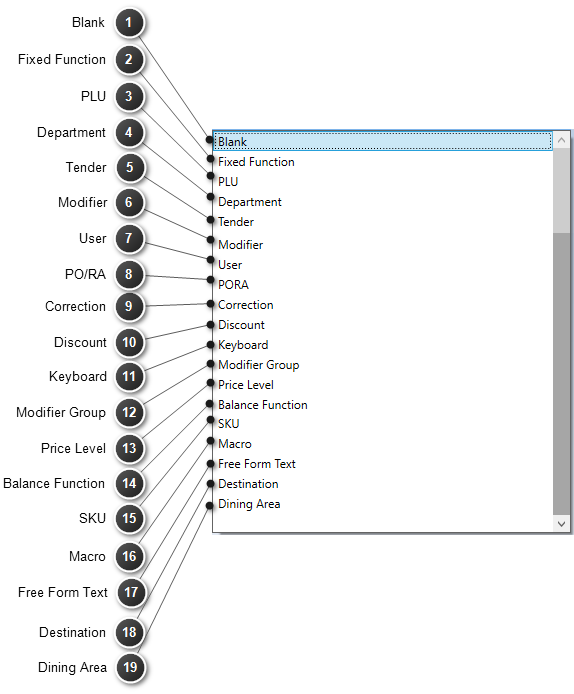
Select one of the supported key types.


Blank

No function will be linked to the key.

Fixed Function

Select one of the supported fixed functions:


Number 0

Displays the number 0.

Number 1

Displays the number 1.

Number 2

Displays the number 2.

Number 3

Displays the number 3.

Number 4

Displays the number 4.

Number 5

Displays the number 5.

Number 6

Displays the number 6.

Number 7

Displays the number 7.

Number 8

Displays the number 8.

Number 9

Displays the number 9.

Number 00

Displays the value 00.

Decimal Point

Allows you to enter decimal values.

Clear

Clears the display screen once the transaction has been completed.

Enter

Completes the current action.

Multiply

Allows you to sell multiples of one item at once. In a Macro, this function may also be used to repeat the last entry made.

PLU

Allows you to enter the Product Id of the item being sold.

User

Allows you to switch users.

Subtotal

Displays the subtotal of the transaction.

Copy

Reprints the receipt of the last  transaction entered.

Receipt On/Off

Turns the printing of receipts on or off. The Printer Icon displayed at the top of the unit will turn red when the receipt printing has been turned off and green when the receipt printing has been turned on. Alternatively, the user may press the printer icon to turn the receipt printing on or off, without the need to program a key.

Cash Declaration

Allows you to specify the amount on hand for each Tender.

Price Check

Allows you to verify the price of an item without a sale. When pressed a "Pc" icon will be displayed at the top of the APOS to indicate that you are currently in "Price Check" mode. 

Hold

Allows you to pause the current transaction and start a new transaction. Held transactions may be recalled and completed or cancelled.

Tenders

Provides a pop-up of all defined Tenders.

Corrections

Provides a pop-up of all defined Corrections.

Discounts

Provides a pop-up of all defined Discounts.

Surcharges

Provides a pop-up of all defined Surcharges.

Tax Shift #1

Enables/Disables the charging of Tax #1


On GoPOS, pressing a Tax Shift key will disable the corresponding tax and display a “Tax # Disabled” message. A red "T#" icon will also be displayed at the top of the APOS to indicate that you are in "Tax Shift" mode. Pressing the same Tax Shift key when the Tax has already been disabled, will re-enable the tax and display a “Tax # Active” message. The red "T#" icon will also be removed from the top of the APOS to indicate that you are no longer in "Tax Shift" mode. Tax shifts will be applied to all items within the current transaction, but will be automatically be re-enabled for the next transaction.

Tax Shift #2

Enables/Disables the charging of Tax #2

Tax Shift #3

Enables/Disables the charging of Tax #3

Price Override

Allows you to enter a price and perform a one time override of the price entered in the product maintenance screen.

Tip Amount

Allows you to enter a tip amount.

Tip Percentage

Allows you to enter a tip percentage.

Food Stamp Subtotal

Will total up all the items in the transaction, without tax,  that have the food stamp option enabled.

Pack

Will add up to two digits to the front of a scanned barcode.


On GoPOS, pressing 1 => 2 => Pack before scanning a bar code will add 12 to the scanned SKU and use this new SKU to lookup the product and price.

Permanent Price Override

Allows you to override and update the current price entered in the product maintenance screen.

Tare Weight

Allows you to manually enter the Tare Weight of a scalable product. Entering the weight and pressing on the Tare Weight fixed function will display "T+ Weight entered + Base Weight Unit" at the top of the APOS to indicate that you are currently in "Tare Weight" mode. Selling a scalable product will deduct the tare weight from the total weight to calculate the price. To clear the Tare Weight, press on the Tare Weight fixed function key. To enter a new tare, enter the weight and press on the Tare Weight fixed function key. 

Seat

When working with a Table, pressing on Seat will display a list of all open seats as well as an option to add a seat on the current table. Press on the seat you wish to work with or press on the next available seat# (New Seat) to add a seat to the current table. Pressing anywhere outside the pop-up window will close the window and cancel the change of seat.


When working with a Table, you may also access a seat by entering the seat# and then pressing on the Seat function. (I.E. seat# + Seat) . If the seat does not exist, a new seat will be created for the current table.


You may also access a specific table and seat by using the dotted notation. (I.E. table#.seat#)  If the table does not yet exist, a new table and seat will be created. If the seat does not yet exist for the specified table, a new seat will be created.

Stock Received

Will create a stock received entry to allow users to add to the Stock Control counter. User Option 10 - "Allow Stock Management" and Setting 96 - "Allow Stock Control on GoPOS" must be set to true to enable the Stock Control functionality on GoPOS.

Stock Adjusted

Will create a stock adjustment entry to allow the users to reduce the Stock Control counter. User Option 10 - "Allow Stock Management" and Setting 96 - "Allow Stock Control on GoPOS" must be set to true to enable the Stock Control functionality on GoPOS.

Report in X Mode

Entering the Report Id and then pressing on the key will generate the specified report in X Mode. User must have X rights.

Warning: The report will be printed on the receipt printer.

Consolidated Report in X Mode

Entering the Report Id and then pressing on the key will generate the specified report in X Mode, consolidating the reports from all APOS devices defined in the network. User must have X rights.

Warning: The report will be printed on the receipt printer.

Report in Z Mode

Entering the Report Id and then pressing on the key will generate the specified report in Z Mode. User must have Z rights.

Warning: The report will be printed on the receipt printer.

Consolidated Report in Z Mode

Entering the Report Id and then pressing on the key will generate the specified report in Z Mode, consolidating the reports from all APOS devices defined in the network. User must have Z rights.

Warning: The report will be printed on the receipt printer.

Fiscal Invoice

Will display a pop-up screen on GoPOS allowing the user to capture client data required for Fiscal Invoices.


PLU

PLU allows you to link the key to any of the defined products via the PLU number. All products defined in the Product maintenance/Item maintenance screen will be displayed.

Department

Allows you to link the key to any of the defined departments. All departments defined in the Departments maintenance screen will be displayed.

Tender

Allows you to link the key to any of the defined tenders. All tenders defined in the Tenders maintenance screen will be displayed.

Modifier

Allows you to link the key to any of the defined modifiers. All modifiers defined in the Modifiers maintenance screen will be displayed.

User

Allows you to link the key to any of the defined users. All users defined in the Users maintenance screen will be displayed.

PO/RA

Allows you to link the key to any of the defined poras. All poras defined in the Poras maintenance screen will be displayed.

Correction

Allows you to link the key to any of the defined corrections. All corrections defined in the Corrections maintenance screen will be displayed.

Discount

Allows you to link the key to any of the defined discounts. All discounts defined in the Discounts maintenance screen will be displayed.

Keyboard

Allows you to link the key to any of the defined Keyboards. All keyboards defined in the Keyboards maintenance screen will be displayed.

Modifier Group

Allows you to link the key to any of the defined modifier groups. All modifier groups defined in the Modifier Groups maintenance screen will be displayed.

Price Level

Allows you to link the key to a specific price level. The price level quantity value entered on the Settings maintenance; products tab will determine the number of price levels displayed.

Balance Function

Allows you to link the key to a balance function. All balance functions defined in the Balance Function maintenance screen will be displayed.

SKU

SKU allows you to link the key to any of the defined products via the SKU number. All products defined with a SKU in the Product maintenance/Item maintenance screen will be displayed.

Macro

Allows you to link the key to any of the defined macros. All macros defined in the Macros maintenance screen will be displayed.

Free Form Text

Allows you to link the key to any of the defined free form text entries. All entries defined in the Free Form Text maintenance screen will be displayed.

Destination

Allows you to link the key to any of the defined destination entries. All entries defined in the Destinations maintenance screen will be displayed.

Dining Area

Allows you to link the key to any of the defined dining areas. All entries defined in the Dining Areas maintenance screen will be displayed.


Function

Select one of the supported fixed functions or one of the defined items from the chosen key type.


Right clicking on the drop down list will sort the list either alphabetically by caption or numerically by Id. You may also type the first letter of the item you are looking for.


        Sorted by Id                                       Sorted by Caption


Function Id

The Id of the selected function will be displayed. The label of the Id displayed will also change to reflect the chosen function.

Text Size

Enter the font size of the display text.

Text Color

Select one of the predefined colors from the color palette to set the color of the display text.


Hint: Placing the mouse cursor over each color square will display a tool-tip indicating the color name.

Key Color

Select one of the predefined colors from the color palette to set the background color of the key.


Hint: Placing the mouse cursor over each color square will display a tool-tip indicating the color name.

Key Position

Enter the X and Y coordinates of the top left corner of the key. Moving the selected key will automatically display the X, Y coordinates of the key as it is repositioned. The key must remain within the boundaries of the layout area.

Key Size

Enter the height and width of the key. Resizing the selected key will automatically display the new height and width of the key as it is resized. The key must remain within the boundaries of the layout area.

Key Type

Press on the drop down list to select either Text or Graphic. If Text is selected, the key caption will be displayed on the key. If multiple lines have been entered in the key caption field, each line will be centred on the key. If Graphic is selected, the Graphic Library Maintenance module will be displayed to allow you to select the image you wish to display on the key. The Insert  Graphic and Delete Graphic buttons will also be enabled to allow you to change the image displayed on the key.

Insert Graphic

Click on the Insert button to insert a graphic image using the Graphic Library Maintenance module. Select the file you want to use from the library by double clicking on the desired image row or directly on the image. This button will only be enabled if the key type is set to "Graphic".

Delete Graphic

Click on this button to delete the graphic image displayed on the selected key. This button will only be enabled if the key type is set to "Graphic" and a valid graphic image has been selected and saved.


Key Layout Area

A new key may be inserted at any time by clicking on the Insert button in the button area of the screen or by hitting the keyboard Insert key. The new key will be inserted in the bottom left corner of the layout area. Before a key can be moved or resized, it must first be selected. You may select a key by clicking directly onto the key when the pointer (arrow icon) is above the highlighted key or by using the navigation buttons. The selected key will come to the forefront and start blinking. The key’s name and current settings will be displayed in the data entry section.


Layout Area

The key layout area will be drawn and positioned based on the APOS keyboard type chosen. 


AP01          - Portrait Layout. Grid size - 720 x 1280

AP02          - Portrait Layout. Grid size - 800 x 1280

AP03          - Portrait Layout. Grid size - 800 x 1280

AP04          - Landscape Layout. Grid size - 1280 x 800

AP05          - Landscape Layout. Grid size - 1920 x 1080

AP05L          - Landscape Layout. Grid size - 1366 x 768

AP06          - Landscape Layout. Grid size - 1920 x 1080


However, since you are allowed to resize the Keys Maintenance window based on your configuration of monitor or monitors, this may stretch and distort the view and orientation (portrait or landscape) of your keyboards.  To see an actual representation of your keyboard as it will appear on the specified APOS, click on the Keyboard Preview icon at the top right of the window.


Selected Key

When the cursor is positioned above the currently selected key, the mouse cursor will change from the arrow icon to a hand icon. To move the key, click and drag the mouse when the hand is directly above it. When the snap to grid option is turned on, the key’s position will snap to the nearest grid line. De-selecting this option or removing the gridlines will allow you to move the key anywhere within the layout area.  To delete the key, click on the Delete button in the button area or hit the keyboard Delete key. To duplicate the key, click on the Duplicate button in the button area.


You may also select more than one key at a a time by using the CTRL key on your computer keyboard and clicking on the key you wish to add to the selection. A small square with a check mark will be displayed at the top left corner of your key to indicate a multi-selection.

Key Border

To resize the currently selected key, click and drag the mouse when the cursor is above any of the key’s borders. The cursor will change to a double headed arrow indicating the direction of motion. When the snap to grid option is turned on, the key’s borders will snap to the nearest grid line. De-selecting this option or removing the gridlines will allow you to resize the key anywhere within the layout area.

Multi Selection

To perform a multi-selection press and hold the CTRL key on your computer keyboard and then click on the key you wish to add to the selection. A small square with a check mark will be displayed at the top left corner of your key to indicate a multi-selection. You may also perform the same steps to remove a key from the multi-selection by clicking on a multi-selected key while pressing on the CTRL key. Clicking on any key other than the first key selected, will remove all keys from the multi-selection. Clicking on any of the navigation keys will also remove all keys from the multi-selection.


When in multi-selection mode, all edits, key sizing, alignment or movement made to the first selected key will be applied to all multi-selected keys. You may also copy the multi-selection to the clipboard and paste the keys on any of your keyboards. Pressing on the delete key while in multi-select mode will delete all selected keys.

Graphic Image

Each defined key may be setup to display the key caption or a graphic image depicting the intended function. If a graphic image is displayed on the key, double clicking the image will open up the Graphic Library Maintenance module.


Buttons

The buttons area consists of the 5 standard buttons plus two buttons that will allow you to copy keys to and from your clipboard.


Delete

Click on this button or press Delete on your computer keyboard to delete the currently selected key or keys.

Insert

Click on this button or press Insert on your computer keyboard to insert a new key on the bottom left of the key layout area. When a new keyboard is created, the system will automatically create a keyboard layout with a blank key in every square grid defined by the grid size chosen. If the empty keyboard option is chosen, the key layout will be blank. New keys will need to be inserted manually. Choosing the appropriate grid size before opening a new keyboard will remove the need to manually insert each key.

Duplicate

Click on this button or press CTRL+D on your computer keyboard to duplicate the currently highlighted key. You may not duplicate a key if multiple keys have been selected.

Copy To Clipboard

Click on this button or press CTRL+C on your computer keyboard to copy the selected key or keys to your clipboard. Once copied, the Paste From Clipboard button will be enabled to allow you to paste the copied key or keys in the layout area of the current keyboard or on any other keyboard you have defined in Keyboards Maintenance.

Paste From Clipboard

Click on this button or press CTRL+V on your computer keyboard to paste the key or keys stored in your clipboard in the layout area of your keyboard. This button will only be enabled if the clipboard contains a copied key(s).


Warning, each time you paste the clipboard content onto one of you keyboards, the key(s) will be pasted with the same size and at the same position as the copied key(s). This means that multiple keys will be overlaid and could lead to unexpected results when using the Register on GoPOS. It is always preferable to paste keys onto an empty keyboard or in an empty area to avoid having keys that are overlaid. The copied key(s) may also be moved as a group to an empty area while still in multi-select mode.

Save

Click on this button or press CTRL+S on your computer keyboard to save changes. All validation errors must be corrected before saving your changes. The button will not be enabled until a change has been made.

Close

Click on this button or the Close (X) button at the top right of the window or press ALT+F4 on your computer keyboard to close the window. If any changes have been made you will be prompted to save the changes before closing the window.


Yes Button

Click on Yes to save changes and close the window. All validation errors must be corrected before saving your changes.

No Button

Click on No to discard all changes made and close the window.

Cancel Button

Click on Cancel to abort the close and return to the maintenance screen.


Navigation

The four navigation buttons at the top left of the screen, allow you to navigate through the list of currently defined keys. Clicking on a button will display the first, previous, next or last key in the list sorted by key id. The selected key will come to the forefront of the key layout area and start blinking. The key’s name and current settings will be displayed in the data entry section.


 - First Key

 - Previous Key. If you are on the first key, clicking this button will take you to the last key.

 - Next Key. If you are on the last key, clicking this button will take you to the first key.

 - Last Key

Undo/Redo

Allows you to reverse or restore the last editing actions, such as editing text size or color properties, or moving or resizing a key.


Undo

Click on Undo or press CTRL+Z on your computer keyboard to undo the last edit or operation.

Redo

Click on Redo or press CTRL+Y on your computer keyboard to redo the last edit or operation that was undone. This button will only be enabled if an edit or operation has been undone.


Alignment

When in multi-select mode, the Auto Alignment and Size buttons available on the tool-bar, allow you to quickly position and resize the selected keys relative to another key. The Auto Alignment buttons position the selected objects relative to the first selected key. The Auto Size buttons make the width or height value of the selected keys the same as the first key selected.


Multi-Select Mode: To select more than one key, click on the key in the keyboard layout area while holding down the computer keyboard CTRL key.


Align Lefts

Positions the left hand border of all selected keys in line with the left hand border of the first selected key.

Align Centers

Positions the horizontal center between the left and right borders of all selected keys in line with the center of the first selected key. This may force a resize of the key to ensure that all selected keys remain within the canvas area.

Align Rights

Positions the right hand border of all selected keys in line with the right hand border of the first selected key.

Same Widths

Resizes the width of all selected keys to the same width as the first selected key. Each selected key must remain within the canvas area.

Same Heights

Resizes the height of all selected keys to the same height as the first selected key. Each selected key must remain within the canvas area.

Same Sizes

Resizes the height and width of all selected keys to the same height and width as the first selected key. Each selected key must remain within the canvas area.

Align Tops

Positions the top border of all selected keys in line with the top border of the first selected key.

Align Middles

Positions the vertical middle between the top and bottom borders of all selected keys in line with the middle of the first selected key.  This may force a resize of the key to ensure that all selected keys remain within the canvas area.

Align Bottoms

Positions the bottom border of all selected keys in line with the bottom border of the first selected key.


Grid Size

Select one of the supported grid sizes. If Empty Keyboard is chosen, no grid is displayed and Show/Hide Gridlines and Snap to Grid buttons are not available.The chosen grid size will be saved as a user preference and will determine if blank keys are automatically created for newly inserted keyboards. When Inserting a new keyboard, if a non-empty keyboard is chosen, blank keys will automatically be inserted into the key layout (one key per cell).  Selecting Empty Keyboard before inserting a new keyboard will not create any blank keys and all keys must be inserted manually. Please note that the grid lines are not part of the keyboard and will not be displayed on the APOS. The gridlines are there simply to help you align your keys. Changing the Grid Size will not affect the layout of existing keys. It will only affect the layout of new keys or keys that are modified after the change in Grid Size.


Gridlines

Select this option to hide/show the grid lines. The gridlines are drawn based on the selected Grid Size. Please note that these lines are not part of the keyboard and will not be displayed on the APOS. The gridlines are there simply to help you align your keys. 

Snap to Grid

If Gridlines have been enabled, selecting this option will enable the snap to grid functionality. This will cause the key to snap to the nearest grid line when moving or resizing a key. Double clicking on a key will expand or shrink the key to fit the nearest grid cell or cells. If Gridlines have been disabled, your are allowed to resize of move a key to any position within the key layout area.

Keyboard Preview

Since you are allowed to resize the Keys Maintenance window based on your configuration of monitor or monitors, this may stretch and distort the view and orientation (portrait or landscape) of your keyboards. Click on the Keyboard Preview icon to display the current keyboard as it will appear on the Register of the APOS type chosen. The numeric keypad displayed at the bottom left of the window will not be displayed if Setting 56 - "Hide Numeric Keypad" has been enabled. Hovering your cursor over each of the defined keys will display the Key type and Function. Please note that due to the size of the APOS screens, a minimum computer screen resolution of 1280 x 720 is required to properly display your APOS keyboards.