User Maintenance


User Maintenance allows you to maintain a list of your staff and setup their access privileges.


The maintenance screen is divided into the following three sections:


Maintenance Grid

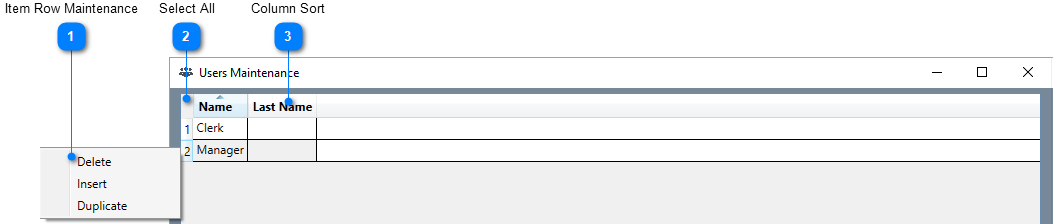
The grid area displays the currently defined users. All fields are display-only and all modifications to a user must be done by selecting the item row and modifying the fields in the data entry area. Once the focus is within the grid area, you may use the arrow-up and arrow-down keys to navigate through each of the rows. All defined values for the selected item will be displayed dynamically in the data entry area.


Item Row Maintenance

Right clicking on any of the row numbers will display a pop-up menu that will allow you Delete, Insert or Duplicate a row. Rows may also be deleted, inserted or duplicated by using the delete, insert or duplicate buttons in the buttons area.

Select All

Clicking on the upper left corner of the grid will select all users. To select multiple contiguous rows, select the first row then press down the SHIFT key on your keyboard and while the SHIFT key is pressed, select the last row in your range. To select multiple rows that are not contiguous, select the first row then press down the CTRL key on your keyboard and while the the CTRL key is pressed, select each subsequent rows that you want to include in the selection. Once you are done selecting all your rows, you can release the CTRL key. All data edits or option changes will be applied to all selected rows. Pressing on the Delete button while in multi-select mode will delete all selected users.

Column Sort

Clicking on a column header will sort the rows either in ascending or descending order, A small arrow at the top of the column will point up for ascending or down for descending order.


Data Entry

The data entry area dynamically displays the currently selected user.


User Id

Enter a unique integer value to identify the user. Required field. Duplicates not allowed. When modifying User Ids, a warning message will be displayed indicating that any references to the user will be lost when the changes are saved.


On GoPOS, entering the Id and then pressing the USR key will allow quick user login. Entering 0 and then pressing the USR key will logout the current users.

Name

Enter the user name or tittle. Required field. Max 25 characters.

Last Name

Enter the user last name. Max 25 characters.

Password

Enter the user password. Max 8 characters. If the Password is left blank, users will be allowed to login to GoPOS using the Change User screen (Press USR) or by using the quick user login function (Enter User Id and then press USR) without being forced to enter a password. 

Default Price Level

Select the price level the user will have access to, by default. All price levels that the user has access to, will be displayed.

Hide/Show Password

Click on this button to hide/show the user password.

Options

Select one or more of the following user options:


Manager

Select this option if the user has managerial rights.

Training

Training Mode. Transactions entered are not reflected in the cash registers daily totals. All transactions are simulated.

R

Register Mode. Register access is granted.

X

Report Mode. Report access is granted.

Z

Clear Report Mode. Generation and clearing of reports is permitted.

P

Program Mode. Point of sale hardware and setup changes are permitted directly on the APOS unit. Read-only access if this option is disabled. Granting P rights also allows the user to enable the Android Bars and access the Android System.

Add Products on the Fly

Select this option to allow users to add items on the fly. On GoPOS if a user scans or enters an item that is not currently in the list of defined products, the user will be given the opportunity to enter the item on the fly. A "Product not found" pop-up window will appear allowing the user to enter a product name, department and price. Pressing ADD will add the item to the Product table and allow the user to proceed with the sale. Pressing CANCEL will terminate the entry and will not add the item.

Open Cash Drawer 1

Will open Cash Drawer 1 if this option is enabled or the Tender Open Cash Drawer 1 option is enabled.

Open Cash Drawer 2

Will open Cash Drawer 2 if this option is enabled or the Tender Open Cash Drawer 2 option is enabled.

Allow Stock Management

Select this option to allow users to make adjustments to Stock on GoPOS. Please note that Setting 96 - "Allow Stock Control on GoPOS" must be set to true to enable the Stock Control functionality on GoPOS.

Price Levels

Select one or more of the price levels defined by the Price Level Quantity value entered in Setting 4 - "Price Level Quantity". If a user has access to multiple price levels, they may switch price levels when entering transactions. The current price level being used will be displayed on the GoPOS register upper display area. This price level will remain in effect until the clerk selects a different price level or changes user.


Buttons

The buttons area consists of the following 5 buttons:


Delete

Click on this button to delete the currently selected row or rows. A warning message will be displayed indicating that any references to the deleted users will be lost when the changes are saved.

Insert

Click on this button to insert a new row at the end of the list. All validation errors on the current row must be corrected before inserting a new row.

Duplicate

Click on this button to duplicate the currently selected row. All validation errors on the current row must be corrected before duplicating the row.

Save

Click on this button to save changes. All validation errors must be corrected before saving your changes. The button will not be enabled until a change has been made.

Close

Click on this button to close the window. If any changes have been made you will be prompted to save the changes before closing the window.


Yes Button

Click on Yes to save changes and close the window. All validation errors must be corrected before saving your changes.

No Button

Click on No to discard all changes made and close the window.

Cancel Button

Click on Cancel to abort the close and return to the maintenance screen.

Import

Click on this button to import one or more users from an OSI User Export file (*.usr) or from a delimiter separated file (*.csv, *.txt). Using the Open dialogue window, select the file extension (*.usr, *.csv, *.txt) from the drop down list to the right of the File name and navigate to and select the file you wish to import.


If a valid OSI Users Export file (*.usr) was selected, clicking on the Open button will insert the user records contained in the export file into your database.


If a delimiter separated file (*.csv, *.txt) was selected, clicking on the Open button will allow you to map the data contained in the file to valid user columns.


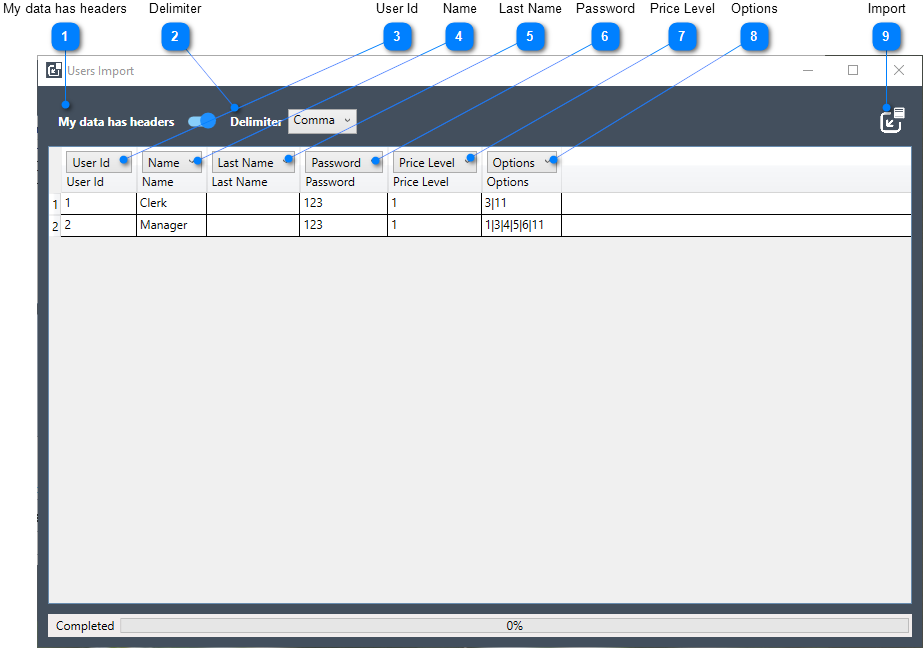
Determine if your data contains headers and specify the delimiter used to separate each field. Map each of the data columns you wish to import. Define all columns in your data that you do not wish to import as "Do not import (Skip)" or alternatively, remove these columns in Microsoft Excel or similar application prior to the import. Click on the Import button to import the data contained in the file into your database.


My data has headers

Enable this option if your data contains data headers for each column. If the file does not contains data headers, a generic "Column X" will be displayed as the column headers. Please note that changing this option will force you to redefine the mapping of all data columns.

Delimiter

Select one of the predefined delimiter values from the drop down list. The application will parse out the fields contained in the file and attempt to display the data using the specified delimiter. Please note that changing this option will force you to redefine the mapping of all data columns.

User Id

Mapping a data column to the User Id will verify the data to ensure that all fields are valid numeric integers without any duplicates. If the User Id column has been mapped, any records in the database matching the specified User Id will be updated. If no match is found in the database, the User Id and associated data will be inserted as a new record in the database. All data errors will be displayed identifying the row, column, value and error message. All records with data errors must be corrected before importing, otherwise the row or rows with errors will be skipped.

Name

Mapping a data column to the Name is required and will verify that all fields are valid, non blank, text values. All data errors will be displayed identifying the row, column, value and error message. If the value exceeds the maximum length of 25 characters, the value will be truncated. All other data errors must be corrected before importing, otherwise the row or rows with errors will be skipped. The Import button will remain disabled until a Name field has been mapped and all data columns have been defined.

Last Name

Mapping a data column to the Last Name will verify that all fields are valid text values. Blanks are allowed. All data errors will be displayed identifying the row, column, value and error message. If the value exceeds the maximum length of 25 characters, the value will be truncated. All other data errors must be corrected before importing, otherwise the row or rows with errors will be skipped.

Password

Mapping a data column to the Password will verify that all fields are valid text values. Blanks are allowed. All data errors will be displayed identifying the row, column, value and error message. If the value exceeds the maximum length of 8 characters, the value will be truncated. All other data errors must be corrected before importing, otherwise the row or rows with errors will be skipped.

Price Level

Mapping a data column to the Price Level will verify the data to ensure that all fields are valid numeric integers from 1 to 10. All data errors will be displayed identifying the row, column, value and error message. All records with data errors must be corrected before importing, otherwise the row or rows with errors will be skipped.

Options

Mapping a data column to Options will verify the data to ensure that all fields are valid pipe "|" delimited Integer values corresponding to individual user options.


1          Manager

2          Training

3          R

4          X

5          Z

6          P

7          Add Products on the Fly

8          Open Cash Drawer 1

9          Open Cash Drawer 2

10          Allow Stock Management

11          Price Level 1

12          Price Level 2

13          Price Level 3

14          Price Level 4

15          Price Level 5

16          Price Level 6

17          Price Level 7

18          Price Level 8

19          Price Level 9

20          Price Level 10


All data errors will be displayed identifying the row, column, value and error message. All records with data errors must be corrected before importing, otherwise the row or rows with errors will be skipped.

Import

Once a Name field and all data columns have been mapped or set to Skip, the Import button will be enabled. Clicking on this button will update or insert all valid records into the database. All data errors will be displayed identifying the row, column, value and error message.


Export

Click on this button to open the Export window which will allow you to export the user list to an OSI proprietary export file (*.usr) or to a delimiter separated file (*.csv).


Export Type

Select one of the following export types:


OSI Proprietary

Select the row or rows you wish to include in the export file. Click on the Export button to open the Export window which will allow you to export the selected users to an OSI proprietary export file (*.usr).

CSV Delimited

Select CSV Delimited to export all users to a delimiter separated file (*.csv). Determine if you want to include column headers and choose one of the supported delimiters. Click on the Export button to open the Export window which will allow you to export all users to a delimiter separated file (*.csv).


Include Headers

Select this option if you want to include column names in your csv export file.

Delimiter

Select one of the supported delimiters to be used to separate each of the columns in your csv export file.

Export

Click on this button to open the "Save As" dialogue window and export the selected users to an OSI proprietary export file (*.usr) or all users to a delimiter separated file (*.csv).


The name of the export file will be defaulted based on export type and selections made, but may be changed to a file name of your choice.


Please note that the OSI proprietary format is meant to allow you to export elements from one PcProg program to another without the need to map your column data. If you want to view or edit the data contained in the export file, you must choose to export a delimiter separated file. To edit your *.csv file, it is best to open Microsoft Excel and use the Open dialogue to navigate to the export file and select Text Files (*.prn, *.txt, *.csv) in the drop down next to File name. This will open the Microsoft Text Import Wizard, which will allow you to tell Microsoft Excel what delimiter was used, whether your data has headers or not, and how to map the data format of each of the columns.  Any changes made to the file within Excel should also be "Saved As" a csv file if you intend on re-importing these changes back into PcProg.