Hardware Maintenance


Hardware Maintenance allows you to insert, update and delete your hardware definitions. Once defined, these hardware definitions may then be linked to one or more of your APOS devices.


The maintenance screen is divided into the following three sections:


Maintenance Grid

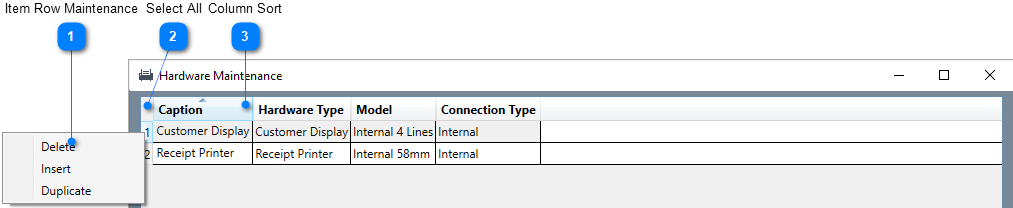
The grid area displays the currently defined hardware. All fields are display-only and all modifications to hardware items must be done by selecting the item row and modifying the fields in the data entry area. Once the focus is within the grid area, you may use the arrow-up and arrow-down keys to navigate through each of the rows. All defined values for the selected item will be displayed dynamically in the data entry area.


Item Row Maintenance

Right clicking on any of the row numbers will display a pop-up menu that will allow you Delete, Insert or Duplicate a row. Rows may also be deleted, inserted or duplicated by using the delete, insert or duplicate buttons in the buttons area.

Select All

Clicking on the upper left corner of the grid will select all hardware. To select multiple contiguous rows, select the first row then press down the SHIFT key on your keyboard and while the SHIFT key is pressed, select the last row in your range. To select multiple rows that are not contiguous, select the first row then press down the CTRL key on your keyboard and while the the CTRL key is pressed, select each subsequent rows that you want to include in the selection. Once you are done selecting all your rows, you can release the CTRL key. All data edits or option changes will be applied to all selected rows. Pressing on the Delete button while in multi-select mode will delete all selected hardware.

Column Sort

Clicking on a column header will sort the rows either in ascending or descending order, A small arrow at the top of the column will point up for ascending or down for descending order.


Data Entry

The data entry area dynamically displays the currently selected hardware item based on the hardware model and connection type chosen.


Hardware Id

Enter a unique integer value to identify the hardware. Required field. Duplicates not allowed. When modifying Hardware Ids, a warning message will be displayed indicating that any references to the hardware will be lost when the changes are saved.

Hardware Type


Receipt Printer

Model

Internal 58mm

Internal connection, no parameters required (AP01, AP02 and AP04). (AP03, AP05, AP05L and AP06 with adaptor).

Internal 80mm

Internal connection, no parameters required (AP03, AP05, AP05L and AP06).

Optima OPT-P100

Ethernet connection, IP and Port required.

Optima OPT-P200

Ethernet connection, IP and Port required.

Optima OPT-P250

Ethernet connection, IP and Port required.

Optima OPT-P300

Ethernet connection, IP and Port required.

Optima OPT-P822

Ethernet connection, IP and Port required.

Optima OPT-KP150

Ethernet connection, IP and Port required.

TM88 or Compatible

Ethernet connection, IP and Port required.

TMU220 or Compatible

Ethernet connection, IP and Port required.

Kitchen Printer

Model

Internal 58mm

Internal connection, no parameters required (AP01, AP02 and AP04). (AP03, AP05, AP05L and AP06 with adaptor).

Internal 80mm

Internal connection, no parameters required (AP03, AP05, AP05L and AP06).

Optima OPT-P100

Ethernet connection, IP and Port required.

Optima OPT-P200

Ethernet connection, IP and Port required.

Optima OPT-P250

Ethernet connection, IP and Port required.

Optima OPT-P300

Ethernet connection, IP and Port required.

Optima OPT-P822

Ethernet connection, IP and Port required.

Optima OPT-KP150

Ethernet connection, IP and Port required.

TM88 or Compatible

Ethernet connection, IP and Port required.

TMU220 or Compatible

Ethernet connection, IP and Port required.

Optima OPT-KV

Ethernet connection, IP and Port required.

(Kitchen Video Display)

Customer Display

Model

Internal 2 Lines

Internal connection (AP03).

Internal 4 Lines

Internal connection (AP02 and AP04).

Optima OPT-CD7

USB connection. (Pole Display)

Internal Screen

Internal connection (AP05*, AP06).

External Ethernet

Ethernet connection, IP and Port required.

External Screen

USB connection.


* When GoPOS is in register mode, the AP05 internal 10" customer display is split into two sections. One section is used to display the current transaction and the other section is used to display advertisements. To use the advertisement feature,  you need to copy the images you want to display in the AP05 slide show folder.


ØCreate your advertisement image (bmp, gif, tif, png, jpg, etc) with recommended size of 512x600. Different sizes will work but may not display properly.

ØCopy the image or images to a USB thumb drive.

ØInsert the thumb Drive into USB port at back of AP05.

ØActivate Android Bars from GoPOS and open up Android File Manager.

ØNavigate to the thumb drive and select the image or images you wish to copy. Press in the check box to the left of the image to select one or more images. You may also select all files in the current folder by pressing on Select ALL in the Action menu.

ØNavigate to the AP05 slide show folder by pressing Home, Internal Memory, opos, slideshow. Press Action in the top menu and press Copy Selection Here to copy the file or files.


When you are in GoPOS Register Mode, the system will cycle through and display each image you copied into the AP05 slide show folder.

Payment Terminal

Model

Once defined in hardware maintenance, Payment terminals must be associated with one or more of the defined Tenders. If a Tender is flagged as using an EFT device, GoPOS will attempt to connect to the first available payment terminal defined for the APOS. GoPOS will display a warning message if no EFT device has been defined or connected to the APOS.


Global Payments Ingenico 5000

Ethernet connection, IP and Port are required. Default Port Number 9100.

Credit/Debit payment tenders should be defined.

Moneris

Ethernet connection, IP and Port are required. Default Port Number 9100.

Credit/Debit payment tenders should be defined.

PayFacto

Internal Connection, URL, API Key, Company Number, Merchant Number and Terminal Number are required.

Credit/Debit payment tenders should be defined.

DC Direct (U.S.A. only)

Ethernet connection, IP, Port and Merchant Number are required.

Default Port Number 80.

Credit/Debit, Food Stamp and EBT Cash payment tenders must be defined.

Pax

Ethernet connection, IP and Port are required.

Default Port Number 10009.

Credit/Debit, Food Stamp, EBT Cash , Get a Pre-Authorization, Complete a Pre-Authorization and Void a Pre-Authorization payment tenders must be defined.

TD Move/Desk 5000

Ethernet connection, IP and Port are required.

Default Port Number 45452.

Credit/Debit, Food Stamp, EBT Cash , Get a Pre-Authorization, Complete a Pre-Authorization and Void a Pre-Authorization payment tenders must be defined.

Fincimex

Ethernet connection, IP and Port are required. Default Port Number 9100.

Credit/Debit payment tenders should be defined.


Additional Merchant Copy receipts may be printed if Setting 62 - Print Merchant Copy has been enabled.

Barcode Scanner

Model

All supported scanner models below are plug and play but must be configured to send the carriage return, with or without a check digit. When dealing with product SKUs, the software automatically adds leading zeros, but those zeros are ignored when performing a search. This means that the scanner will still work if it sends or does not send leading zeros. However, if the scanner is set up to not send check digits, then bar codes in the system need to be created without check digits and Setting 31 - "Validate Check Digit for Scanned Products" must be disabled. Please refer to the manufacturers manual or manufacturers website for setup instructions and scan-able setup bar codes.


Datalogic Magellan 8500

Serial connection, Port Speed, Number of Data Bits, Number of Stop Bits, Parity Bits and Port Number required.

Optima OPT-S3000

No setup required. Plug & Play.

Optima OPT-S3500

No setup required. Plug & Play.

Optima OPT-S4500

No setup required. Plug & Play.

Optima OPT-S5000

No setup required. Plug & Play.

Honeywell MS954

No setup required. Plug & Play.

Honeywell MK7580

No setup required. Plug & Play.

Zebra DS9308

No setup required. Plug & Play.

Scale

Select one of the supported models and specify the connection type and rounding option (Regular, Round Up or Truncate). The unit of measurement to use with the scale is defined in Setting 18 - "Base Weight Unit".


Model

Optima OPT-S01

Serial connection, Port Speed, Number of Data Bits, Number of Stop Bits, Parity Bits and Port Number required.

Virtual

Internal connection, no parameters required. User will be prompted to enter weight.

Brecknell

Serial connection, Port Speed and Port Number required. Number of Data Bits fixed to 8. Number of Stop Bits fixed to 1. Parity Bits fixed to None. Port Number should be set to 0 for the AP05 and port 1 for the AP04. In either case, the scale should be plugged into the 6 pin RS232 port in the back of the unit. The protocol to use is the ECR-SCP02 (factory default).

Datalogic Magellan 8500

Internal connection, no parameters required. The built in Datalogic Magellan 8500 scanner must be defined for this unit to be recognized by GoPOS.

CASS PD 11

Serial connection, Port Speed, Number of Data Bits, Number of Stop Bits, Parity Bits and Port Number required. The CAS PD 11 default baud rate is 9600, 7 bits, even parity, and 1 stop bit. The protocol to use is ECR-TYPE 4 as per CAS PD-II manual. Serial DB-9 and Serial DB-25 are supported with proper pin-out information.

Optima OPT-6X

USB Connection, no parameters required.

Fiscal Device

Select one of the supported fiscal devices and specify the connection type and connection options. Fiscal Mode must be enabled in the Setting Options. Setting 92 - "Enable Fiscal Mode".


Model

YCS PR

Internal connection, POS Id, which is the unique identifier provide by YCS PR, the YCS Fiscal API URL and the POS Password are required.

Factura Mx

Internal connection, Merchant Fiscal Id, API URL, API User Name, API Password and Terminal Id are required.

Dispenser

Select one of the supported models and specify the connection type and connection options for this liquid dispenser.


Model

Berg

Serial connection, Port Speed, Number of Data Bits, Number of Stop Bits, Parity Bits and Port Number required.

Cash Drawer

All cash drawers are plug and play but must be plugged into the RJ11 port marked Drawer, at the back of the unit, to be recognized.


Connection Type

Select one of the supported connection types for the selected hardware type and model.


Internal

No communication settings are required.

Serial

Port number, speed, number of stop bits, number of data bits (7 or 8) and parity (none, even or odd) are required.

Ethernet

IP address and Port are required.

USB

No communication settings are required.

Caption

Enter the name or description of the hardware. Required field. Max 25 characters.

Language

This option allows you to specify the language used to define the printer protocol and code page of the selected printer. Select one of the supported languages.


Options

Select one or more of the following hardware options:


Use Second Names

Select this option if you wish to use the Department, Product and Modifier second names. This allows you to display transactions on the selected printer using a second description. You may send descriptions in a different language by enabling this option and selecting one of the supported printer languages. For example, transactions may be displayed in English, but sent to a kitchen printer in French, Spanish or Chinese.

Graphic Import

Click on this button to import a graphic image. The selected image will be printed on the specified receipt printer if Setting 67 - "Print Graphic Logo on the Receipt" has been enabled. A separate graphic logo may be specified for 58mm and 80mm paper.


Cursor Position

Displays the current cursor position in x, y coordinates. Display-only.

Caption

Displays the selected receipt printer name. A separate graphic logo may be specified for 58mm and 80mm paper. Display-only.

Graphic Position

Enter the X and Y coordinates of the top left corner of the image. The display only cursor position may be used to help identify a specific position in the layout section. Moving the image will automatically display the X, Y coordinates of the key as it is repositioned. The image must remain within the boundaries of the layout area.

Graphic Size

Enter the height and width of the image. Resizing the selected image will automatically display the new height and width of the image as it is resized. The image must remain within the boundaries of the layout area.

Receipt Layout Area

The receipt layout area will be drawn and positioned based on the receipt printer model chosen. 


58mm - 383 pixels x 230 pixels

80mm - 575 pixels x 230 pixels

Graphic Logo

A graphic image may be inserted at any time by clicking on the Insert button in the button area of the screen. The new image will be inserted in the top left corner of the layout area. When the cursor is positioned above the image, the mouse cursor will change from the arrow icon to a hand icon. To move the image, click and drag the mouse when the hand is directly above it. To resize the image, click and drag the mouse when the cursor is above any of the image borders. The cursor will change to a double headed arrow indicating the direction of motion.

Delete

Click on this button to delete the graphic image displayed in the layout area.

Insert

Click on the Insert button to insert a graphic image using the "Open" file dialogue. Select the file you want to use as a a graphic image and click on the Open button. If a valid file was selected (BMP, JPEG, GIF, TIFF, PNG), the image will be converted to a black and white image and displayed in the layout area. Click on the Cancel button to cancel the import and close the "Open" file dialogue. Please note that it is always best to start with a black and white image.

Save

Click on this button to save changes. All validation errors must be corrected before saving your changes. The button will not be enabled until a change has been made.

Close

Click on this button to close the window. If any changes have been made you will be prompted to save the changes before closing the window.


Delete Header

Click on this button to delete the currently selected print header row. Rows may also be deleted by right clicking on the print header row number and selecting Delete from the pop-up menu.

Insert Header

Click on this button to add a new print header row. Print Headers may have one or more message lines. Each line can be displayed in its own font and may be printed in Bold, Underline and either in left, center or right justification. Rows may also be inserted by right clicking on the print header row number and selecting Insert from the pop-up menu.

Delete Footer

Click on this button to delete the currently selected print footer row. Rows may also be deleted by right clicking on the print footer row number and selecting Delete from the pop-up menu.

Insert Footer

Click on this button to add a new print footer row. Print Footers may have one or more message lines. Each line can be displayed in its own font and may be printed in Bold, Underline and either in Left, Centre or Right justification. Rows may also be inserted by right clicking on the print footer row number and selecting Insert from the pop-up menu.

Line Number

Right clicking on any of the print header or print footer row numbers will display a pop-up menu that will allow you Delete or Insert a row. Rows may also be deleted or inserted by using the delete or insert row buttons.

Text

Enter the text you wish to display on the receipt header. Max 80 characters.

Font

Select one of the supported printer fonts.


Font A Standard


Font A Double Width

Font A Double Height

Font A Double Width and Double Height        

Font B Standard

Font B Double Width

Font B Double Height

Font B Double Width and Double Height

Bold

Check this box if you wish to display the text in bold.

Underline

Check this box if you wish to display the text with underline.

Justify

Select one of the support text justifications. Left, Center or Right justification.


Buttons

The buttons area consists of the following 5 buttons:


Delete

Click on this button to delete the currently selected row or rows. When deleting hardware or modifying the hardware type, a warning message will be displayed indicating that any references to the deleted hardware will be lost when the changes are saved.

Insert

Click on this button to insert a new row at the end of the list. All validation errors on the current row must be corrected before inserting a new row. When inserting new printer or customer display, this hardware will automatically be added and enabled in all applicable modules.

Duplicate

Click on this button to duplicate the currently selected row. All validation errors on the current row must be corrected before duplicating the row.

Save

Click on this button to save changes. All validation errors must be corrected before saving your changes. The button will not be enabled until a change has been made.

Close

Click on this button to close the window. If any changes have been made you will be prompted to save the changes before closing the window.


Yes Button

Click on Yes to save changes and close the window. All validation errors must be corrected before saving your changes.

No Button

Click on No to discard all changes made and close the window.

Cancel Button

Click on Cancel to abort the close and return to the maintenance screen.


Import

One or more hardware entries exported from one program may be imported into the same or a different program. Each hardware entry saved during the export will be inserted as a new hardware entry into the current program.


Click on the Import button to open the "Open" file dialogue. Select the File you want to use to import data from, and click on the Open button to verify the file. If a valid OSI Hardware Export file (*.hdw) has been selected, the system will attempt to import each hardware entry included in the file. Click on the Cancel button to cancel the import and close the "Open" file dialogue.

Export

One or more hardware entries from one program may be exported and then imported into the same or a different program.


Click on Select All or select the row or rows you wish to include in the export file. Click on the Export button to open the Save As dialogue window which will allow you to export the selected hardware items to an OSI proprietary export file (HardwareExport.hdw). The name of the export file will be defaulted based on the selection or selections made, but may be changed to a file name of your choice.


Type in the File Name and location where you want to save the export file and click on the Save button to perform the export or click on the Cancel button to cancel the export. A message will be displayed when completed, indicating whether the export was successful or not.