Hardware Device Maintenance


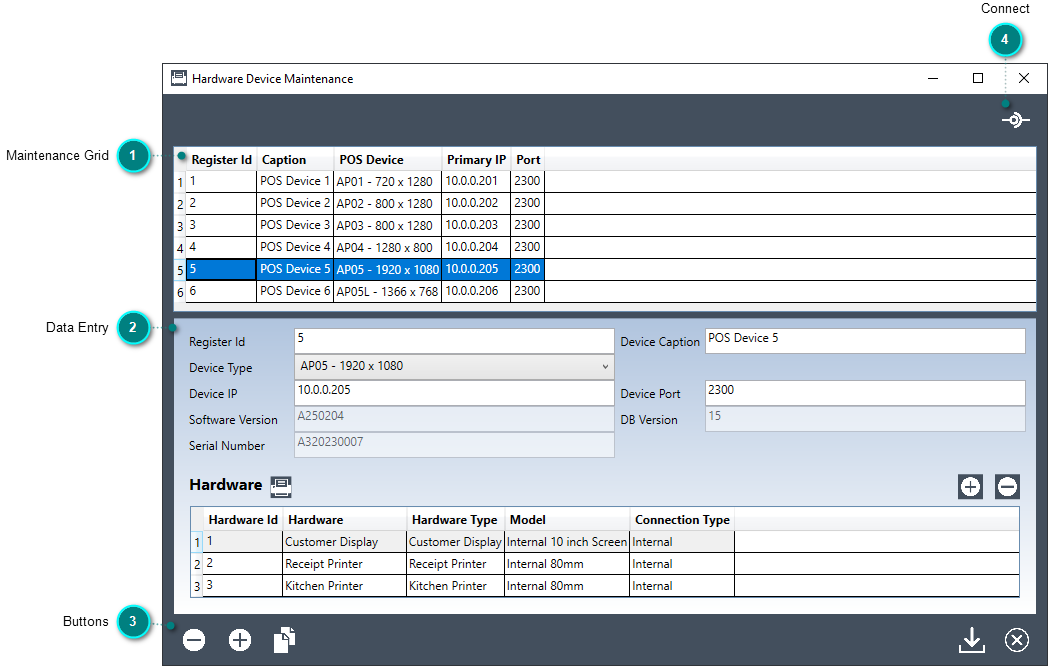
Hardware Device Maintenance allows you to define the APOS devices on your network. You must specify the device type and communication parameters for each APOS device you wish to connect to. This maintenance window will also allow you to define the specific hardware linked to each device.


The maintenance screen is divided into the following three sections:


Maintenance Grid

The grid area displays the currently defined APOS devices. All fields are display-only and all modifications to devices must be done by selecting the item row and modifying the fields in the data entry area. Once the focus is within the grid area, you may use the arrow-up and arrow-down keys to navigate through each of the rows. All defined values for the selected item will be displayed dynamically in the data entry area.


Item Row Maintenance

Right clicking on any of the row numbers will display a pop-up menu that will allow you Delete, Insert or Duplicate a row. Rows may also be deleted, inserted or duplicated by using the delete, insert or duplicate buttons in the buttons area.

Column Sort

Clicking on a column header will sort the rows either in ascending or descending order, A small arrow at the top of the column will point up for ascending or down for descending order.


Data Entry

The data entry area dynamically displays the currently selected APOS device.


Register Id

Enter a unique integer value identifying each APOS device. Required field. Duplicates not allowed. The register Id needs to match the register number defined in Option Setting 14 on the APOS device. Please note that the APOS must be restarted before changes made to the register Id on GoPOS will take effect.

Device Type


AP01


This sleek portable hand held unit is built for day to day business and ideal for business on the move! Optima's APOS-01® is integrated with everything you need to meet multiple commercial needs including a 6” Touch Screen, 2 1/4” Thermal Receipt Printer, WCDMA/3G, Bluetooth and WIFI and a charger dock station!

AP02


Optima's APOS-02® is the perfect choice for smaller business who want a sleek looking POS terminal integrated with everything you need combining reliability and mobility all in one. Optima's APOS-02® is embedded with our proprietary Optima GoPOS® software and features a powerful Rockchip Processor, 8” Touch Screen, 2 1/4” Thermal Receipt Printer, Multi-Line Customer Display, WCDMA/LTE, Bluetooth, WIFI and GPS.

AP03

Optima's  APOS-03® is a robust stationary POS terminal embedded with our proprietary Optima GoPOS® software that is able to withstand busier retail and restaurant workplace environments. It’s packed with everything you need to meet multiple commercial needs including a powerful Rockchip Processor, 8” Touch Screen, large 3 1/8” Thermal Receipt Printer & Auto-cutter, Single Line Customer Display, WCDMA/LTE, Bluetooth, WIFI and GPS. 

AP04

Our sleek Optima APOS-04® features a large 10” Touch Screen giving you the ability to add more menu items and buttons making it a great choice for small and medium sized retail and restaurant applications! The Optima APOS-04® is embedded with our proprietary Optima GoPOS® software and packed with a powerful Rockchip Processor, Multi-Line Customer display, 2 1/4” Thermal Receipt & Auto Cutter, WCDMA/LTE, Bluetooth, WIFI, and GPS.

AP05


The Optima APOS-05® is a true All-In-One POS Terminal equipped with a large 15.6” Touch Screen making it a great choice for medium and large commercial applications such as supermarkets, larger restaurants and retailers!  The Optima APOS-05® features a Rockchip Processor, and large 10.1” color customer display, 3 1/8” Thermal Receipt Printer & Auto Cutter, Bluetooth, and WIFI.

AP05 Light


The Optima APOS-05L®,  is the "Light" cost effective version of the APOS-05.  It is a true All-In-One POS Terminal equipped with a large 11.6” for medium and large commercial applications such as supermarket, larger restaurants and retailers!   The Optima APOS-05L® features a Rockchip Processor, and Thermal Receipt Printer with fast paper roll replacement & Auto Cutter, Bluetooth, and WIFI.

AP06


The Optima APOS-06® is a true All-In-One POS Terminal equipped with a large 15.6” Touch Screen making it a great choice for medium and large commercial applications such as supermarkets, larger restaurants and retailers!  The Optima APOS-06® features a Rockchip Processor, and large 15.6” color customer display, modular 3 1/8” Thermal Receipt Printer & Auto Cutter, Bluetooth, and WIFI.


Device IP

Enter the TCPIP of the device. The IP along with the Port will be used to connect to your APOS device when sending and receiving project data. It is best practise to use fixed sequential IPs when setting up the APOS devices on your network. The IP entered here needs to match the IP defined on the APOS device. See APOS help documentation on how to setup your APOS device IP through Wifi or Ethernet.

Software Version

The current software version of the connected APOS device will be displayed.

Serial Number

The serial number of the connected APOS device will be displayed.

Caption

Enter the name or description of the APOS device. Required field. Max 25 characters.

Port

Enter the Port number of the device on your network. The default value for the Port Number will be taken from Setting35 - "TCP Port for Communication". The port entered here needs to match the port defined in Option Setting 35 on the APOS device. Please note that the APOS must be restarted before changes made to the port on GoPOS will take effect.

Database Version

The current database version of the connected APOS device will be displayed. When sending and receiving programs, PcProg's database version displayed in the Help/About box, must be greater than or equal to the GoPOS database version of the connected device.

Insert Hardware

Click on this button to insert a new row at the end of the list. This will allow you to add and define a new hardware entry for the current device. Rows may also be inserted by right clicking on the device hardware row number and selecting Insert from the pop-up menu.

Delete Hardware

Click on this button to delete the currently selected device hardware row. Rows may also be deleted by right clicking on the device hardware row number and selecting Delete from the pop-up menu.

Hardware Maintenance

Clicking on the Hardware Maintenance button will give you quick access to the Hardware Maintenance Module. This module will allow you to maintain the Hardware definitions for all your APOS devices. This Hardware can then be linked to one or more of the appropriate type of APOS device defined in your network. Please note that hardware entries are specific to certain types of APOS devices.

Line Number

Right clicking on any of the device hardware row numbers will display a pop-up menu that will allow you Delete or Insert a row. Rows may also be deleted or inserted by using the delete or insert row buttons.

Hardware Id

Display only. The Id of the selected hardware will be displayed.

Hardware

Double Click in the Hardware column to select a hardware entry from the list of defined Hardware. Double clicking on any other column of the selected row will display the Hardware Maintenance screen, allowing you to make changes to the Hardware definitions.


Please note that hardware entries are specific to certain types of APOS devices. For example, if defined, an "Internal Screen" customer display will be included in the Hardware drop down list only if the current device is an AP05 or AP06. All other device types will have a different internal customer display size or as in the case of the AP05 Light, no internal customer display.

Hardware Type

Display only. The hardware type of the selected hardware will be displayed.

Model

Display only. The hardware model of the selected hardware will be displayed.

Connection Type

Display only. The connection type of the selected hardware will be displayed.


Buttons

The buttons area consists of the following 5 buttons:


Delete

Click on this button to delete the currently selected APOS device.


Please note that once a device has been deleted, PcProg will no longer be able to send projects to the device and will no longer be able to receive projects from the device.

Insert

Click on this button to insert a new row at the end of the list. All validation errors on the current row must be corrected before inserting a new row.

Duplicate

Click on this button to duplicate the currently selected row. All validation errors on the current row must be corrected before duplicating the row.

Save

Click on this button to save changes. All validation errors must be corrected before saving your changes. The button will not be enabled until a change has been made.

Close

Click on this button to close the window. If any changes have been made you will be prompted to save the changes before closing the window.


Yes Button

Click on Yes to save changes and close the window. All validation errors must be corrected before saving your changes.

No Button

Click on No to discard all changes made and close the window.

Cancel Button

Click on Cancel to abort the close and return to the maintenance screen.


Connect

Once you have defined the communication parameters for your APOS device, selecting the device and clicking on the Connect button will attempt to connect to the specified register using the defined device IP and Port.


If successful, a message will be displayed and the device Software Version, Database Version and Serial Number will be updated.


Please note that if the connected device does not match the defined APOS type, Serial Number or Register Id, a warning message will be displayed.


When sending Hardware and Keyboard definitions, it is extremely important that the device type defined in PcProg match the actual type of the connected APOS. The device type determines which keyboards and hardware entries will be enabled on each of your APOS devices.


For Inter Register Communication (IRC) as well as for report and stock downloads, it is important that each APOS have it's own unique sequential Register Id and device IP. Please see Setting 46, Setting 68 and Setting 69 for additional instructions on how to setup inter-register communications.