Table Mapping


Table Mapping Maintenance allows you to setup and maintain a list of your dining areas. Please note that the dining area and table mapping functionality is only currently available on the AP05, AP05 Light and AP04 models. You may still access the table account balances using the Balance functions on other devices, but the table Map Layout will not display on the AP01, AP02 or AP03. It is also highly recommended to only use APOS units running a minimum of Android 8.1 if IRC is enabled, due to the CPU limitations.


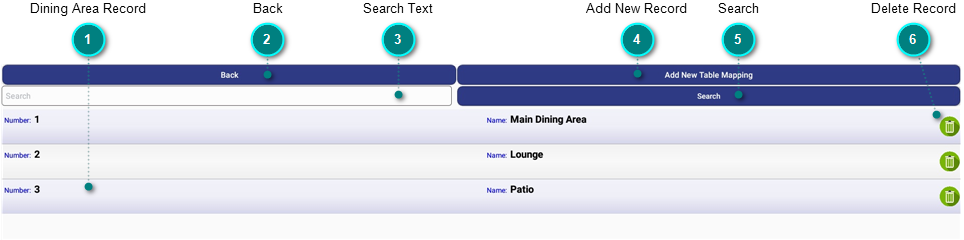
Dining Area Record

Each record will be displayed as an individual row. To edit or view the record details, press and hold on one of the rows.

Back

Press Back to return to the GoPOS Home Menu.

Search Text

Press in the search field to activate the android keyboard. Enter the text you wish to search for and press on the Search button. All records containing the entered text in the name field will be displayed.

Add New Record

Press on this button to add a new Dining Area record.


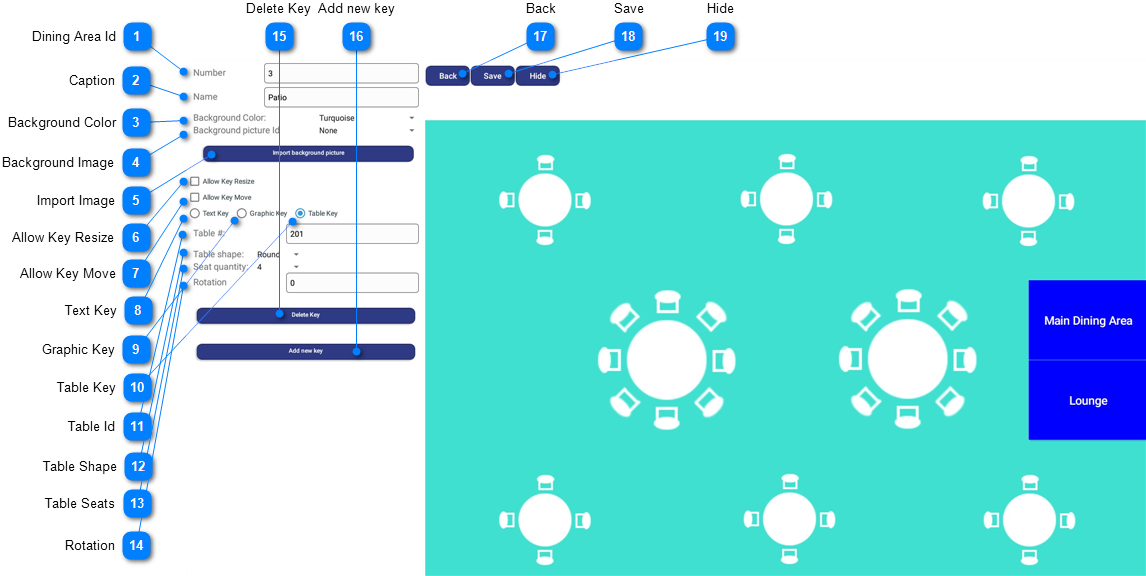
Dining Area Id

Display only. When adding new records,  the next available Id value will be displayed.

Caption

Enter the dining area name or caption. Required field. Max 25 characters.

Background Color

Select one of the color names from the drop down list.

Tip - Position the mouse cursor over each color square to display the corresponding color name on GoPOS.

On GoPOS the tables defined within each dining area will change color based on the current status of the table. When a table is "Free", the table will be displayed in the dining area with the specified "Free" color. Once a server presses on a table and opens a seat (account) for the table, the table status will change from "Free" to "In Use" and change color accordingly. All other changes to the table status must be done manually by the server with a long press on the table. This will present the server with a pop up selection with all the defined table statuses. Once the table status has been changed the table color will change to reflect the new status. If IRC is enabled, all APOS devices in the network will also be updated to reflect the table's new status.

Background Image

Press on the drop down list to select one of the graphic images or None to remove the image. A background image of the dining area may be used to help with the layout of the tables. A picture or rendering (BMP, JPEG, GIF, TIFF, PNG) of the actual room layout may be used without any size restriction. However, by increasing the image size, the speed of program transmission to and from GoPOS will be greatly reduced. Each image linked to a dining area is also stored in the GoPOS memory further reducing the speed and responsiveness of the GoPOS application. It is recommended that the size be reduced as much as possible without affecting the image resolution.

Import Image

Press on the Import background picture button to insert a graphic image using the Android File Manager.

Allow Key Resize

Pressing on the check box will allow you to resize the keys.


When enabled, to resize a key, press on one of the keys and without lifting your finger off the screen, drag the key to the desired size, either expanding or reducing the size of the key depending on the direction of motion. The key must remain within the boundaries of the layout area.


Pressing on a key when this check box is disabled will allow you to change the parameters of the key, but will not allow you to resize the key.

Allow Key Move

Pressing on the check box will allow you to reposition the keys.


When enabled, to reposition a key, press and hold on the center of the key and without lifting your finger off the screen, drag the key to the new position. The key must remain within the boundaries of the layout area.


Pressing on a key when this check box is disabled will allow you to change the parameters of the key, but will not allow you to move the key.

Text Key

A key may be defined as either a Text Key, Graphic Key or Table Key. If Text is selected, the key may be defined as a Blank Key or a Table Map. The caption entered in the Text field will be displayed on the key.


If Blank is selected, no function will be linked to the key and no action will be performed when pressing on this key in the GoPOS Register.


If Table Map is selected, you may link the key to any of the defined dining areas. All dining areas defined in the Table Mappings will be displayed. Pressing on this key in the GoPOS Register will display the dining area and associated tables.

Graphic Key

A key may be defined as either a Text Key, Graphic Key or Table Key. If Graphic is selected, the key may also be defined as a Blank Key or a Table Map, however the image linked to the Picture Id selected from the drop down list will be displayed on the key. You may also press on the Import key picture button to insert a graphic image using the Android File Manager.


If Blank is selected, no function will be linked to the key and no action will be performed when pressing on this key in the GoPOS Register.


If Table Map is selected, you may link the key to any of the defined dining areas. Pressing on this key in the GoPOS Register will display the dining area and associated tables.

Table Key

A key may be defined as either a Text Key, Graphic Key or Table Key. If Table is selected, you may define the shape of the table and the number of seats. Pressing on this key in GoPOS will allow you to select a seat and open the account associated with the selected table and seat. Doted notation is also allowed to access a particular seat, where the seat number is entered and then the table is pressed. A long press on a table will display the Table Status pop-up menu allowing you to change the status and associated color of the table.

Table Id

Enter a unique integer value to identify the table. The value entered will be displayed on the table when in register mode.


On GoPOS, you may access the table and seats by pressing directly on the table when the dining area is displayed on the register. Selecting a seat will open up a new account for the chosen table and seat if it has not already been opened. Entering a seat number before pressing on a table key will allow you direct access to a specific seat on the table. You may also access the table by entering the table Id and then pressing on the Table Open/Add/Close balance function to open the balance for the specified table and seat. For example, to open Table #1 Seat #2, press on 1 dot 2 then on the Open/Add/Close Table function key. You may then add transaction items to the open table and seat. Once the transaction has been finalized, you may close the balance to return to the dining area view or continue with other transactions by pressing on the Table Open/Add/Close balance function key. If you need to add more items to a closed balance you will be allowed to reopen the balance until the account is fully tendered.


If inter-register communication (IRC) has been enabled, you will not be allowed to open a table seat if it is already open on another register. Please see Setting 15, Setting 16 and Setting 46 for further detail on setting up IRC.

Table Shape

Select one of the supported table shapes (Round or Square). The table will be drawn in the layout area with the selected shape.

Table Seats

Select one of the supported number of seats for the table (1 to 8). The table will be drawn in the layout area with the selected number of seats.


Please note that the number of seats associated with each table will not limit the number of accounts opened for each table. Any number of seats and associated accounts can be opened and linked to a table.

Rotation

Enter the rotation in degrees, from 0 to 360. Entering a value will rotate the seats the specified degrees clockwise.

Delete Key

Press on this button to delete the currently selected key.

Add new key

Press on this button to insert a new key on the bottom left of the key layout area.


Please note that you must enable "Allow Key Resize" by pressing on the check box if you wish to resize the key and you must enable "Allow Key Move" by pressing on the check box if you wish to move the key.

Back

Press "Back" to close the window and return to the previous screen without saving any changes.

Save

Press "Save" to close the window and return to the previous screen. All modifications made will be saved.

Hide

Press "Hide" to hide the android keyboard when displayed.


Search

Press on this button to search the Name field for the entered search text. All records containing the search text in the name field will be displayed. Pressing on the Search button will also hide the android keyboard when activated.

Delete Record

Pressing on the trash can icon will delete the current row. A dialogue window will be displayed asking you to confirm the deletion.


Press on YES to delete the selected row or CANCEL to cancel the deletion.