Stock Lookup


Stock Lookup on PcProg, allows you to view and maintain inventory received and sold as well make inventory adjustments. Stock received and adjusted will be created by inserting new entries and specifying the product and amount added or subtracted. Stock sold entries will be auto-generated by downloading sales from your APOS device or devices. When inserting stock received and adjusted entries or downloading stock sold entries, only products flagged as stock items at the Department or Product level will be included. Please note that Stock Control can also be managed directly on GoPOS by enabling Setting 96 - "Use Stock Control on GoPOS". If enabled, stock control will no longer be available on PcProg.


Department

Stock entries may be viewed by "All" departments or viewed by a specific department by selecting the appropriate department from the drop down list. The Total Stocked Products, Total Items in Stock and Quantity pie charts will be updated to reflect the counts and totals of the items in the specified department. You may also further refine this list by entering a search value in the Filter field.

Total Products

The Total Stocked Products is a count of all products flagged as "Stock" at the department or product level. This count is affected by the Department selection as well as by the filter being used. Only stock items currently displayed in the data grid are included in the count. Setting the Department to "All" and removing all filters will count all items flagged as "Stock" in your database.

Total Items

The Total Items in Stock is a count of all items currently on hand. This count is affected by the Department selection as well as by the filter being used. Only stock items currently displayed in the data grid are included in the count. Setting the Department to "All" and removing all filters will count the number of items on hand for all items flagged as "Stock" in your database.

Quantity Received

This pie chart represents the top 25 quantity received for the items currently displayed in the data grid. Each slice of the pie chart represents a single product. Hovering your cursor over a slice will display the product name, total quantity received and percentage of all products received in the pie chart. Selecting an item in the data grid will highlight the slice representing the selected product.

Quantity Adjusted

This pie chart represents the top 25 quantity adjusted for the items currently displayed in the data grid. Each slice of the pie chart represents a single product. Hovering your cursor over a slice will display the product name, total quantity adjusted and percentage of all products adjusted in the pie chart. Selecting an item in the data grid will highlight the slice representing the selected product.

Quantity Sold

This pie chart represents the top 25 quantity sold for the items currently displayed in the data grid. Each slice of the pie chart represents a single product. Hovering your cursor over a slice of the pie chart will display the product name, total quantity sold and percentage of all products sold in the pie chart. Selecting an item in the data grid will highlight the slice representing the selected product.

Quantity on Hand

This pie chart represents the top 25 quantity on hand for the items currently displayed in the data grid. Each slice of the pie chart represents a single product. Hovering your cursor over a slice of the pie chart will display the product name, total quantity on hand and percentage of all products on hand in the pie chart. Selecting an item in the data grid will highlight the slice representing the selected product.

Search Filter

Entering a search text will filter the list of stock items and only display product names containing the entered text. The Total Stocked Products, Total Items in Stock and Quantity pie charts will be updated to reflect the counts and totals of the items in the filtered list. If this field is blank, all stocked items in the selected department will be displayed.

Update Stock Received

Clicking on the Update Stock Received Data button will display the Stock Received Maintenance window.


Maintenance Grid

The grid area displays the currently defined stock received entries. All fields are display-only and all modifications to stock entries must be done by selecting the row and modifying the fields in the data entry section. Once the focus is within the grid area, you may use the arrow-up and arrow-down keys to navigate through each of the rows. All values for the selected item will be displayed dynamically in the data entry section.

Data Entry

The data entry area dynamically displays the currently selected stock received entry.


PLU

Enter the product PLU number or click on the PLU lookup to select it from the product lookup window.

PLU Lookup

Clicking on the PLU Lookup button will display the Inventory Product Lookup window. Only products flagged as inventory items at the Department or Product level will be displayed. The lookup window will allow you to search for and select the product received. Double clicking on an item row, will close the lookup window and return the chosen PLU to the Stock Received Maintenance screen.

SKU

Enter or scan the product SKU number or click on the SKU lookup to select it form the product lookup window.

SKU Lookup

Clicking on the SKU Lookup button will display the Product Lookup window. This will allow you to search for and select the product received. Double clicking on an item row, will close the lookup window and if defined, will return the chosen SKU to the Stock Received Maintenance screen.

Quantity

Enter the amount or quantity of product received.

Comment

Free form text allowing you to enter comments on the product received.

Name

Displays the product name. Display only.

Department

Displays the product department. Display only.

Date

Enter the date the stock was received or click on the Calender icon to select the date.


Buttons

The buttons area consists of the following 5 buttons:


Delete

Click on this button to delete the currently selected row.

Insert

Click on this button to insert a new row at the end of the list. All validation errors on the current row must be corrected before inserting a new row.

Duplicate

Click on this button to duplicate the currently selected row. All validation errors on the current row must be corrected before duplicating the row.

Save

Click on this button to save changes. All validation errors must be corrected before saving your changes. The button will not be enabled until a change has been made.

Close

Click on this button to close the window. If any changes have been made you will be prompted to save the changes before closing the window.


Yes Button

Click on Yes to save changes and close the window. All validation errors must be corrected before saving your changes.

No Button

Click on No to discard all changes made and close the window.

Cancel Button

Click on Cancel to abort the close and return to the maintenance screen.


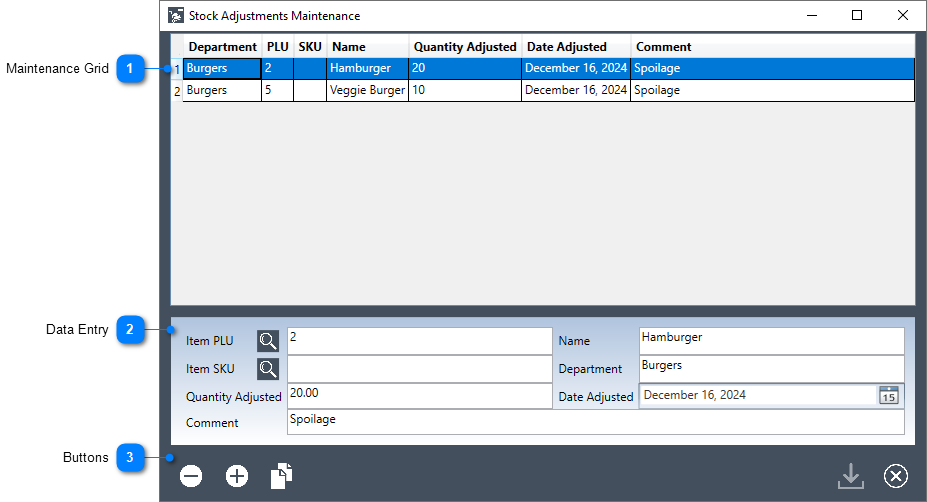
Update Stock Adjustments

Clicking on the Update Stock Adjustments button will display the Stock Adjustments Maintenance window.


Maintenance Grid

The grid area displays the currently defined stock received entries. All fields are display-only and all modifications to stock entries must be done by selecting the row and modifying the fields in the data entry section. Once the focus is within the grid area, you may use the arrow-up and arrow-down keys to navigate through each of the rows. All values for the selected item will be displayed dynamically in the data entry section.

Data Entry

The data entry area dynamically displays the currently selected stock adjustment entry.


PLU

Enter the product PLU number or click on the PLU lookup to select it from the product lookup window.

PLU Lookup

Clicking on the PLU Lookup button will display the Inventory Product Lookup window. Only products flagged as inventory items at the Department or Product level will be displayed. The lookup window will allow you to search for and select the product being adjusted. Double clicking on an item row, will close the lookup window and return the chosen PLU to the Stock Adjustments Maintenance screen.

SKU

Enter or scan the product SKU number or click on the SKU lookup to select it form the product lookup window.

SKU Lookup

Clicking on the SKU Lookup button will display the Product Lookup window. This will allow you to search for and select the product being adjusted. Double clicking on an item row, will close the lookup window and if defined, will return the chosen SKU to the Stock Received Maintenance screen.

Quantity

Enter the amount or quantity of product adjustment. This will reduce the quantity of stock on hand.

Comment

Free form text allowing you to enter comments on the product being adjusted or to document inventory adjustments.

Name

Displays the product name. Display only.

Department

Displays the product department. Display only.

Date

Enter the date the stock was adjusted or click on the Calender icon to select the date.


Buttons

The buttons area consists of the following 5 buttons:


Delete

Click on this button to delete the currently selected row.

Insert

Click on this button to insert a new row at the end of the list. All validation errors on the current row must be corrected before inserting a new row.

Duplicate

Click on this button to duplicate the currently selected row. All validation errors on the current row must be corrected before duplicating the row.

Save

Click on this button to save changes. All validation errors must be corrected before saving your changes. The button will not be enabled until a change has been made.

Close

Click on this button to close the window. If any changes have been made you will be prompted to save the changes before closing the window.


Yes Button

Click on Yes to save changes and close the window. All validation errors must be corrected before saving your changes.

No Button

Click on No to discard all changes made and close the window.

Cancel Button

Click on Cancel to abort the close and return to the maintenance screen.


Update Stock Sold

Clicking on the Update Stock Sold Data button will display the Update Stock Sales Data window.


Primary IP

Enter the Primary IP of the devices on your network. The Primary IP will be saved to your preferences once entered.

Port

Enter the Port number of the devices on your network. The default value for the Port Number will be taken from Setting35 - "TCP Port for Communication".

Connect

Once the Connect button is clicked, the system will attempt to communicate with each of the APOS devices connected to your network. The Primary IP entered will be used to connect to the first device and the IP will be incremented by one for each subsequent device until the max number of devices defined has been reached. The Number of devices on your system is defined in Setting16 - "Quantity of Registers in the Network". Each device will display a device type and corresponding Icon. If a device was not found, a message box will allow you to cancel or continue the operation and the Unknown Device icon will be displayed. If a device can not be reached, please ensure that your PC or Laptop running PcProg is connected to the same network as the APOS unit. Confirm the IP address of the APOS unit by pressing and holding the "OPTIMA GoPOS" logo on the GoPOS home screen. Press on the "Register" button to return to register mode on the APOS.

Update

The Update Stock Sales Data button will be enabled once you select one or more of the connected devices.


Click on the Update Stock Sales Data button to receive the sales data from the chosen POS device or devices. A message box asking you to confirm that you wish to import sales data from the chosen APOS device will be displayed. Click on Yes to receive the data from the chosen POS device. Click on No to cancel the import.


The progress bar at the bottom of the screen will indicate the overall progress of the import. When completed, a message will be displayed indicating whether the import was successful or not.

Device List

Select one of the connected devices by clicking on the device icon. To select multiple contiguous devices, select the first device then press down the SHIFT key on your keyboard and while the SHIFT key is pressed, select the last device in your range. To select multiple devices that are not contiguous, select the first device then press down the CTRL key on your keyboard and while the the CTRL key is pressed, select each subsequent device that you want to include in the selection. Once you are done selecting all your devices, you can release the CTRL key. Unknown devices may not be selected. Click on the Update Stock Sales Data button to receive the sales data from the chosen POS device or devices.


Stock Grid

The grid area displays the currently defined stock entries. Once the focus is within the grid area, you may use the arrow-up and arrow-down keys to navigate through each of the rows. Selecting an item in the data grid will highlight the slice in the pie charts representing the selected product.


All fields are display-only and all updates to stock sold must be performed by clicking on the Update Stock Sales Data button or by downloading the Period 4 - "Yearly" report in the reports module. Stock received entries and adjustments must be entered by clicking on the Update Stock Received or Update Stock Adjustments button or by double clicking on a row to display the Stock Maintenance Window.


Stock Item

The selected stock item information will be displayed along with the counts for total received, total adjusted, total sold and total on hand.

Stock Received


Line Number

Right clicking on any of the stock received line row numbers will display a pop-up menu that will allow you Delete or Insert a row. Rows may also be deleted or inserted by using the delete or insert stock received buttons.

Date

Enter the date the stock was received or click on the Calender icon to select the date.

Quantity

Enter the amount received. For inventory adjustments, a negative value may be entered.

Comment

Free form text allowing you to enter comments on the product received or to document inventory adjustments.

Insert Stock Received

Click on this button to add a new stock received line. Rows may also be inserted by right clicking on the stock received line row number and selecting Insert from the pop-up menu.

Delete Stock Received

Click on this button to delete the currently selected stock received line. Rows may also be deleted by right clicking on the stock received line row number and selecting Delete from the pop-up menu.


Stock Adjusted


Line Number

Right clicking on any of the stock adjusted line row numbers will display a pop-up menu that will allow you Delete or Insert a row. Rows may also be deleted or inserted by using the delete or insert stock adjustment buttons.

Date

Enter the date of the stock adjustment or click on the Calender icon to select the date.

Quantity

Enter the amount adjusted. This will reduce the amount of stock on hand.

Comment

Free form text allowing you to enter comments on the product being adjusted or to document inventory adjustments.

Insert Stock Adjustment

Click on this button to add a new stock adjusted line. Rows may also be inserted by right clicking on the stock adjusted line row number and selecting Insert from the pop-up menu.

Delete Stock Adjustment

Click on this button to delete the currently selected stock adjusted line. Rows may also be deleted by right clicking on the stock adjusted line row number and selecting Delete from the pop-up menu.


Stock Sold

The Stock Sold entries are display only and can not be modified or deleted. Updates to the auto generated entries must be done by performing a sales data download through the Update Stock Sales Data or by re-running the "Yearly" report in the reports module. Once the "Yearly" report has been run in Z mode, the entries will no longer be updated. Running the "Yearly" report after it has been cleared, will auto-generate new stock entries for all new sales in the new fiscal period.


The date the data was last downloaded, the quantity sold and the register number of the APOS that performed the sale is displayed. Hovering the mouse cursor over the Register Number will display a pop-up window showing the Model Number, Serial Number, Software Version and Database Version of the register used to generate the entry. Double clicking on an entry will display the Yearly Report in the Reports Viewer, if available. If the report has not been generated or has been deleted, a warning message will be displayed.


Portrait/Landscape

This button display the current page orientation of the stock report. Clicking on Landscape will change the orientation of the report from landscape to portrait. Clicking on Portrait will change the orientation from portrait to landscape.

Report Name

Select one of the three stock reports available from the drop down list.


Quantity on Hand

The Stock quantity on hand report will provide you with a quick snap shot of the available stock on hand. This report is grouped by Department.

Minimum Quantities

The Stock minimum quantities report will display a shopping list of all items in inventory that currently fall under the minimum quantity on hand defined at the Department/Product level.

Suppliers

The Stock minimum quantities by supplier report will also provide you with a shopping list, but this report is grouped by supplier.


Stock Report Viewer

Click on this button to view the Stock Report selected, showing amounts received, amounts sold and quantity on hand. The Portrait/Landscape buttons displays the current page orientation of the stock report. Clicking on Landscape will change the orientation of the report from landscape to portrait. Clicking on Portrait will change the orientation from portrait to landscape.


Print

Click on this button to print the report.

Export

Click on this button to export the report to one of the supported formats.

Search

Type the text or value you would like to search for.

Page Navigation

Click on the Previous Page, Next Page or enter the specific page you wish to view.

Department

Double clicking on a department will generate the Items sub-report, showing the individual department quantities.

Tabs

Each sub report will be displayed in it's own tab. Click on the tab to navigate directly to a specific report.

Report Sizing

Click on Fit to Width, Full Page or click and drag the slide bar to display a specific view percentage.